I Tried Google's FREE AI Video Generators (Only 3 Are Worth Using)
Provides AI filmmakers with practical strategies for using Google's free web-based video generators and structuring multi-shot sequences using timestamp prompting.
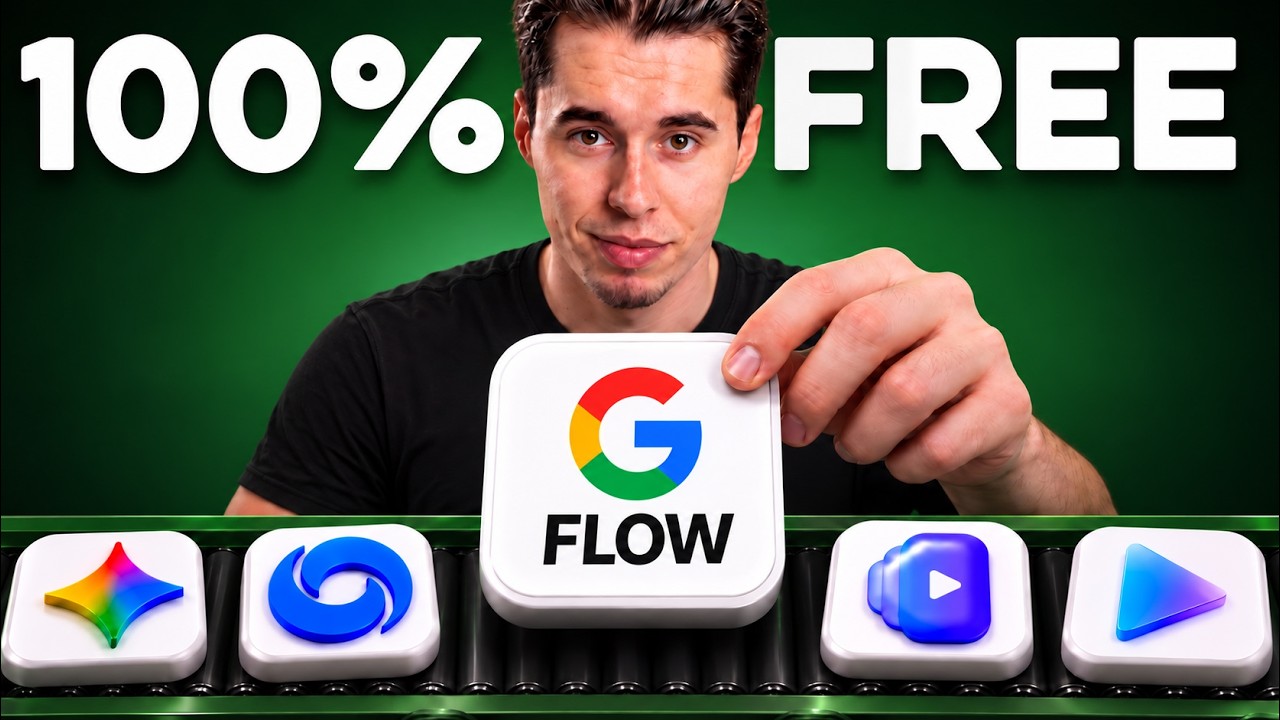
What this lesson covers
Youri van Hofwegen evaluates and demonstrates Google's free AI video creation tools, focusing on Google Vids and Google Flow. He highlights practical workflows for browser-based video editing, AI avatars, AI agent assistance, and timestamp prompting using models like Veo 3.1, Omni Flash, and Nano Banana Pro.
Key takeaways from the creator
AI-extracted notes, not independently verified product claims. Timestamp links let you check each point in the original video.
- 00:32 ↗
Google Vids allows users to create AI videos directly in the browser by navigating to vids.new and selecting landscape, portrait, or square aspect ratios.
- 02:15 ↗
The Edit feature in Google Vids modifies existing video clips via prompt updates while maintaining overall scene consistency, unlike Recreate which generates entirely new video clips.
- 03:03 ↗
Google Vids includes an AI avatar feature that generates synthetic presenters from text scripts for video shorts and automated reels.
- 04:00 ↗
Google Flow incorporates an AI agent that interprets plain-English requests, plans prompt executions, and displays its reasoning step before generating media.
- 06:13 ↗
Veo 3.1 supports timestamp prompting, enabling multi-shot scene generation up to 8 seconds by specifying timed beats and cut directions directly in the text prompt.
Workflow outlined in the video
- Navigate to vids.new to launch Google Vids and choose the project aspect ratio.
- Use the Edit button under generated clips in Google Vids to alter specific visual elements without regenerating the full shot.
- Configure default models (such as Nano Banana Pro and Omni Flash) and enable 'confirm before generating' in Google Flow's settings menu.
- Prompt Google Flow's AI agent using natural language and review its generated action plan before approving rendering.
- Format multi-shot prompts for Veo 3.1 by designating explicit timestamp ranges for camera cuts and describing static environmental elements at the end of the prompt.
Before you use this workflow
These notes describe the source video at its publication date. Model access, pricing, connectors and interfaces may have changed. Check the original source and the provider’s current documentation before installing an add-on, connecting an account or spending credits.
ReelStack has not independently tested this workflow. Preview one representative shot and check motion, continuity and output quality before applying it to a full production. No result, cost saving or model capability is guaranteed.
How to interpret the numbers
161,796 views captured 30 October 2026. ReelStack recommendation score: 41/100. Formula: radar-v5. This is ReelStack’s calculation, not a YouTube rating or a measure of factual accuracy.
Show the calculation
- 45% performance: 1.82× views vs 12 other channel videos observed at a similar age. View-evidence factor 99% (views / (views + 1,000))
- 25% freshness: 11/100 with a 14-day half-life
- 20% momentum: 580 views/day vs 736 channel baseline (8 comparable uploads), with the same view-evidence factor
- 10% engagement: 2/100; likes + 4× comments, smoothed with a 500-view neutral prior